Checking comunications with Probot
Once succesfully configured our computer we can verify if we are able to comunicate with the robot by checking if our computer is able to see the topics exposed by the robot.
By default if we run ros2 topic list on our computer (without starting any node) we will get an output like:
user@protomrobotics-ros2:~$ ros2 topic list
/parameter_events
/rosout
When the virtual machine and the robot are on the same network we will get all the topics exposed by the robot, so the output will be like:
user@protomrobotics-ros2:~$ ros2 topic list
/camera_info
/clicked_point
/dynamic_joint_states
/face_ui
/goal_pose
/image_raw
/image_raw/compressed
/image_raw/compressedDepth
/image_raw/theora
/initialpose
/joint_state_broadcaster/transition_event
/joint_states
/joint_trajectory_controller/controller_state
/joint_trajectory_controller/joint_trajectory
/joint_trajectory_controller/state
/joint_trajectory_controller/transition_event
/parameter_events
/remote_control
/robot_description
/rosout
/tf
/tf_static
/touch_event
/velocity_controller/commands
/velocity_controller/transition_event
/voice_stt
If we are able to see the robot topic we can try publish data to the /face_ui to change the robot expression via the following command:
ros2 topic pub -1 /face_ui probot_ui_interfaces/msg/FaceUi "{face_ui_item: 'happy'}"
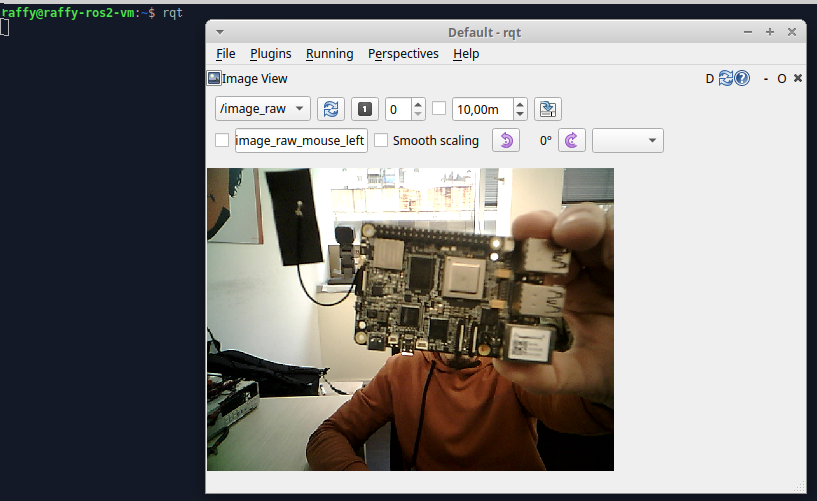
Or we can get a camera feed using the ros2 rqt tool. After launching the rqt tool from the command line we can open the camera feed by selecting Plugins->Visualization->Image View